RSA Authenticator (SecurID)
- 3.3
- Rating
- 10.00M
- Installs
- Free
- Price
 Analysis by App-foxy
When an app protects access to work systems, the best result is often a quieter day rather than a more exciting one. RSA Authenticator (SecurID) is built for that kind of quiet. It is a communication app in the broadest sense: it helps establish that the person signing in is really the person who should be there. I used it as a security checkpoint rather than as a place to chat, and that distinction matters. It does not add another social feed, inbox, or stream of alerts to your routine. Instead, it sits between you and the conversations, files, accounts, or services that require stronger proof of identity.
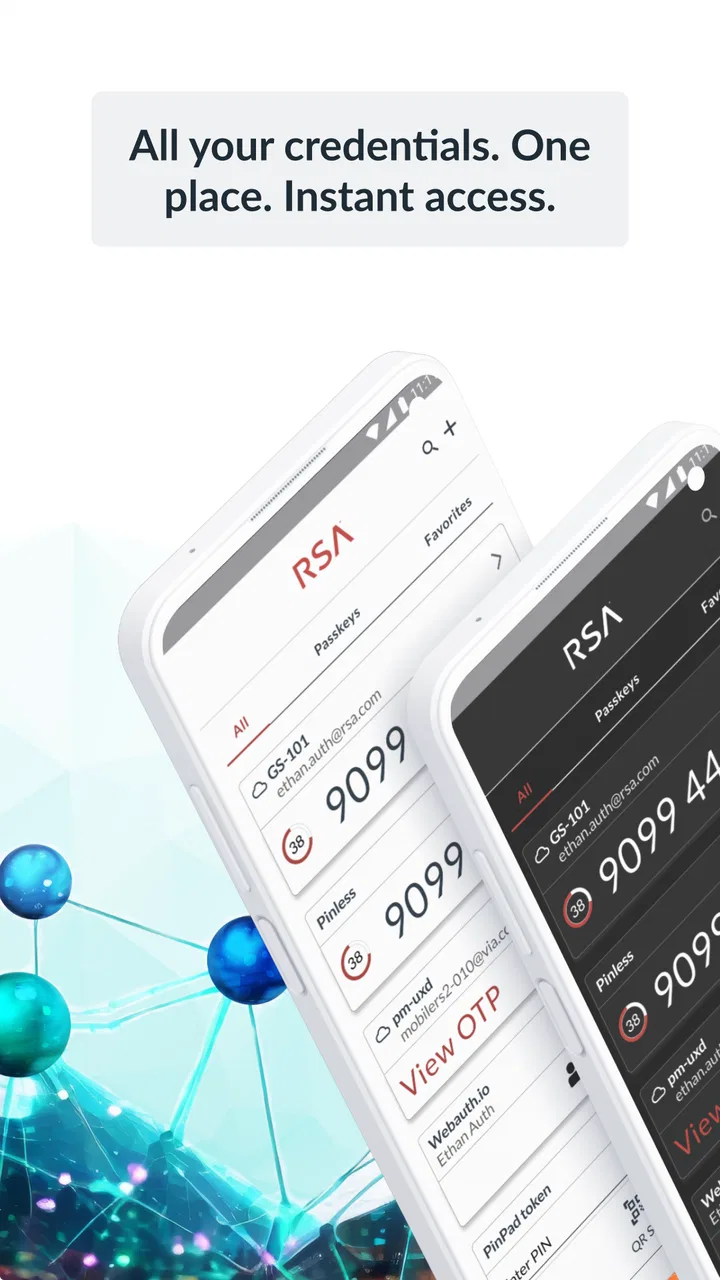
That makes the app easy to misunderstand if you approach it like a normal consumer utility. Its value is not in keeping you entertained or helping you send messages faster. Its value is in reducing uncertainty at the moment access is requested. RSA Security has developed it around several authentication methods, including passkeys, biometrics, and one-time passwords. In practice, that gives it a role in the background: you complete a verification step, then return to the task that actually matters.
The important question is not whether it has many visible features, but whether its verification flow fits the rhythm of your day. For people whose employer or service requires RSA authentication, it can be a necessary and useful companion. For someone looking for a general-purpose password manager or a flexible authenticator chosen entirely on personal preference, the experience is more conditional.
You May Also Like

 Blood Strike: 2.5 Anniversary
Blood Strike’s Loadouts Turn Every Drop Into a Tactical Gamble
A close look at Blood Strike’s custom loadouts: how fast access to signature weapons reshapes its battle royale rhythm, rewards preparation, and narrows the gap between fights.

 Pandora - Music & Podcasts
Pandora’s Music Is Easy to Start, but Harder to Recover
Pandora’s strength is its low-effort path from a seed to a station. Its weak spot is how much confidence it asks you to place in connection, setup, and quiet recovery.

 8 Ball Pool
 Is Built on Rivalries, Rematches, and Routine
A close look at the rivalries, rematches, shared routines, and unanswered safety questions that turn a quick pool match into a persistent mobile community.

 Samsung Music
’s Quiet Strength Is Playing What You Already Own
Its reach comes less from spectacle than from dependable access to a personal library. That simplicity is both the app’s strongest retention engine and its ceiling.

 AccuWeather: Weather Radar
AccuWeather Review: A Quick, Clear Forecast for Everyday Decisions
For everyday plans, the best forecast is the one you can understand quickly. AccuWeather makes rain timing, radar, and local conditions easy to act on, with a few trade-offs.

 Hill Climb Racing
Why Hill Climb Racing Still Turns Crashes Into One More Run
A tiny car, a bumpy hill and one more upgrade: Hill Climb Racing keeps resurfacing because its simple chaos makes every near-miss feel personal.
More From Our News Desk



Where RSA Authenticator fits into everyday communication
Although the app belongs to the Communication category, I would not describe it as a communication tool in the usual sense. It does not replace email, messaging, calls, or collaboration software. Its connection to communication is indirect but important: secure access determines whether you can reach the people and information you need. A failed sign-in can interrupt a meeting, delay a reply, or leave you unable to open a document just when someone is waiting for it.
I found that this changed my view of the app. Instead of asking whether it made communication richer, I asked whether it made the entry point less confusing. A clear authentication step can preserve a conversation’s momentum. You do not have to explain that you are locked out, search through old setup instructions, or repeatedly guess which code belongs to which account. When the process works, the app disappears after doing its job.
The developer, RSA Security, has a long association with identity and access protection, and that focus is apparent in the product’s narrow purpose. This is not an app trying to become the center of your digital life. It is designed to support access decisions. That specialization is a strength when your organization already uses RSA-based authentication, because the app has a clear place in an existing security process. It is less compelling when you simply want to choose an authenticator without any outside requirement.
The app is free, has an Everyone age rating, and has been available since May 24, 2011. It has reached over ten million installs, while its average rating sits at about 3.2 from roughly eighteen thousand ratings. I read those figures as a useful warning against judging it only by adoption. A security app can be widely required and still create frustration in daily use. The rating suggests that setup, compatibility, or the authentication experience may not feel equally smooth for everyone.
What the first setup teaches you
The first important task is not signing in; it is preparing the app before you urgently need it. If your employer or service has given you enrollment instructions, I would follow them slowly and keep the relevant account details available. Authentication apps are unforgiving when you treat setup as something to finish in a hurry. A small mistake at this stage can turn a simple sign-in into a support request later.
I also recommend checking the phone you intend to use before removing an older device or resetting it. An authenticator may be only one part of the access chain, but losing the device connected to that chain can affect your ability to reach work or account services. This is one of the less obvious trade-offs: the app can make daily verification quick, yet the initial relationship between your phone and your account deserves careful attention.
That is also where RSA Authenticator differs from a general password manager. A password manager usually aims to organize credentials, generate passwords, and fill forms across many services. This app is centered on proving identity during access. If you expect it to store and manage your entire login life, you may find its scope too narrow. If your organization specifically directs you to use it, however, that narrowness can be reassuring because there are fewer unrelated functions competing for your attention.
How the verification flow affects conversation flow
In an ordinary workday, authentication often happens at the worst possible moment: just before a video call, while responding to a time-sensitive message, or when a colleague is waiting for a file. The quality of the app is therefore tied to how naturally it fits between two actions. I prefer an authenticator that lets me verify and return to the original task without making me rethink the whole login process.
The support for passkeys, biometrics, and one-time passwords gives the app more than one route into an account. That matters because different situations call for different levels of effort. A biometric check can be convenient when I am already holding the phone and need to proceed quickly. A one-time password can be more familiar in an environment built around codes. Passkeys may offer a different sign-in rhythm altogether, particularly for services that have adopted them.
Still, having several methods does not mean every account will present every method. The available route depends on how the service or organization has configured authentication. This is an important expectation to set: installing the app does not automatically transform every login into a biometric or passkey experience. The app participates in a larger system, and that system determines what you see.
One practical habit helped me avoid breaking the flow. When a sign-in asks for a code, I read the account or service context carefully before entering anything. If several accounts or environments are involved, rushing can lead to using a valid code in the wrong place. The code may be temporary, but the confusion it creates can last longer than the code itself. Treating the screen as a checkpoint rather than an interruption makes the process calmer.
This is also why I would not compare it with a messaging app based on speed alone. A message can be sent again if it fails. Authentication is different: the goal is not continuous interaction but a trustworthy handoff from the login screen to the protected service. The best experience is almost invisible, and the app’s success is measured by whether your conversation can continue without an unnecessary detour.
The hidden attention cost of security checks
Security tools protect attention in one way and consume it in another. RSA Authenticator can prevent a login problem from becoming a larger disruption, but every verification request still asks me to stop, identify the correct account, and complete a deliberate action. That pause is worthwhile when access is sensitive. It can feel excessive when I am signing in repeatedly during a busy stretch.
I noticed three different kinds of attention cost. The first is the immediate interruption: opening the app or responding to a verification prompt. The second is the memory cost of knowing which authentication method applies to which service. The third is the maintenance cost of keeping the authentication arrangement usable when changing phones, accounts, or work routines. None of these makes the app a poor choice, but they are real parts of the experience.
The most useful way to manage that cost is to separate urgent access from routine preparation. I would not wait until a meeting is starting to discover that the authentication process needs attention. Completing enrollment, understanding the expected method, and checking that the app is ready before a deadline protects the rest of the day. This is a small workflow change, but it prevents a security step from becoming a communication crisis.
Biometrics can reduce friction, but convenience should not become automatic approval. I still pay attention to what I am authorizing, especially when a request appears at an unexpected time. A quick confirmation is helpful when I initiated the sign-in. It deserves a pause when I did not. That distinction is one of the strongest everyday lessons from using an authentication app: speed is useful only when it remains connected to awareness.
One-time passwords create a different rhythm. They are visible, deliberate, and easy to understand, but they require transferring a temporary value from one place to another. Passkeys and biometric methods can feel smoother, yet they may be unfamiliar to people who have spent years relying on codes. I would choose the method supported by the account and the one I can use confidently, rather than assuming the newest-sounding option is automatically best.
Boundaries between personal time and protected access
An authenticator can influence boundaries even though it does not contain conversations itself. If a work account requires verification on a personal phone, the device becomes part of the path to work. That can make after-hours access feel easier, which is convenient in an emergency but potentially unhealthy if it encourages constant checking.
I found it helpful to define a simple rule: authentication should support an intentional task, not create a reason to browse. If I open the app because I need to enter a protected service, I complete that action and leave. The app’s narrow purpose makes this boundary easier than it would be with a platform full of feeds and messages, but the boundary still depends on the user.
This is also a reason to think about who should skip it. If you are looking for an app to coordinate family conversations, manage personal contacts, or replace a password manager, this is not the right tool. If you dislike connecting work access to a phone, you should first understand your organization’s available authentication choices rather than installing it and assuming it will solve that concern. The app is most suitable when it is part of a known access requirement and you accept the phone as one step in that process.
On the other hand, remote workers, contractors, students using protected institutional systems, and people who regularly move between work locations may appreciate the consistency of having authentication in one familiar place. The benefit is not that the app makes remote work more social. It is that it can remove one layer of uncertainty before a call, document review, or account-based conversation.
Where the experience can become frustrating
The modest average rating is worth taking seriously, even though it does not explain every individual experience. Authentication apps are judged during stressful moments, so a confusing setup or failed verification feels more serious than a minor inconvenience in another category. The app’s usefulness depends on compatibility with the service asking for authentication, the enrollment process, and the phone environment around it.
Another limitation is that the app cannot repair a broken account relationship by itself. If an organization has not enrolled you correctly, if the requested method is unavailable, or if you are using the wrong account context, repeatedly opening the app will not solve the underlying problem. The sensible response is to identify whether the issue is in the app, the account, or the service’s configuration. That diagnosis can save time compared with treating every failed login as an app malfunction.
I would also avoid uninstalling it casually when it is tied to an important account. Removing an authentication tool during a cleanup session may feel harmless, but access tools deserve a little more planning than ordinary apps. Before changing phones or clearing account-related apps, I would make sure I understand how re-enrollment works for the service I use. That is practical advice rather than a criticism of this particular product, but it is especially relevant here because the app sits at the entrance to other services.
The current version is 4.7.1.1 and requires an operating system version of 10 or later. That makes the phone’s software level part of the decision. If your device cannot meet that requirement, this app will not be a useful path for you, regardless of how well the authentication method fits your needs. Keeping the operating system current can also reduce the chance that the app becomes the first thing blamed for a broader device-compatibility issue.
How it compares with familiar alternatives
Compared with a general authenticator, RSA Authenticator feels more closely tied to an organization’s identity system. A general authenticator may be attractive when you are selecting your own method for several unrelated accounts. RSA’s app makes more sense when the service you need has already chosen RSA Security as part of its access process. In that situation, choosing a different app may not be possible or may simply create extra work.
Compared with SMS codes, an app-based method can feel less dependent on receiving a text at exactly the right moment. It also keeps the verification action within a dedicated security tool rather than mixing it with ordinary messages. The trade-off is that the phone and app become important parts of the process. Someone who changes devices frequently or has limited access to the enrolled phone may prefer an arrangement that better matches their circumstances, if the account owner permits that choice.
Compared with passkey support built directly into a phone or browser, RSA Authenticator can feel like an additional stop. Its advantage is that it brings several authentication approaches into the RSA-focused workflow. Its disadvantage is that the smoothest possible sign-in may sometimes be the one that uses the operating system’s built-in tools with no separate app involved. The right comparison depends on the service, not just on the app’s feature list.
For me, the deciding factor is responsibility. If my workplace or institution says this is the approved route, I would use it and learn the expected workflow rather than trying to substitute a familiar alternative. If I am choosing freely for a personal account, I would compare the account’s supported methods, recovery process, and device habits before committing. RSA Authenticator is strongest when it matches the system around it.
Who will get the most from it
I would recommend RSA Authenticator to someone who needs secure access to an RSA-enabled service and wants passkeys, biometrics, or one-time passwords available within that authentication experience. It is especially practical for people who want a clear separation between their conversations and their security checks. You open it for a reason, complete the verification, and return to the work or personal task that brought you there.
I would be more cautious recommending it as a purely independent choice. Its usefulness is not the same for every account, and its setup is more consequential than installing a casual communication app. Someone who wants one universal tool for passwords, autofill, recovery planning, and authentication may find a broader security suite more suitable. Someone who rarely uses protected services may also gain little from adding another step to the phone.
The app’s Everyone rating reflects that it is not aimed at a restricted age group, but ease of use still depends on context. A new user may need clear instructions from the organization or service that invited them to enroll. The app can present the authentication action, but it cannot replace an understandable account setup process. That is why I would judge the complete workflow, not just the screen shown after installation.
My final view on its place in a quieter digital routine
After using RSA Authenticator, I see it as infrastructure for communication rather than communication itself. It can protect the moment before a conversation begins: the login before a meeting, the account check before opening a shared file, or the verification step before responding from a protected system. When it works with the surrounding service, it keeps those moments short and predictable.
Its limitations are equally clear. It may add a pause to urgent access, its usefulness depends heavily on enrollment and compatibility, and it is not a replacement for a password manager or a messaging platform. The relatively modest average rating suggests that the experience can be uneven, so I would not promise effortless setup for every user. I would promise a focused tool whose value becomes obvious when it is required by the system you need to enter.
My social verdict is favorable but specific: use RSA Authenticator when it is the authentication bridge your account or organization expects, not simply because you want another security app. Prepare it before an important day, choose the supported verification method you can use attentively, and keep a sensible boundary between intentional access and constant checking. For the right user, that discipline turns a potentially disruptive security task into a brief, manageable pause—and lets the real conversation continue.
FAQs for RSA Authenticator (SecurID)
01What is the RSA Authenticator (SecurID) app used for?
The RSA Authenticator (SecurID) app is designed to enhance security by providing two-factor authentication. It generates a time-sensitive code that users must enter along with their regular password to access secured systems. This additional layer of security helps protect sensitive data and accounts from unauthorized access.
02How do I set up the RSA Authenticator (SecurID) on my device?
To set up the RSA Authenticator, first download the app from the App Store or Google Play. Once installed, follow the setup instructions provided by your organization. Typically, this involves scanning a QR code or entering a registration code to link the app with your user account, enabling it to generate secure tokens.
03Is an internet connection required to use the RSA Authenticator (SecurID)?
No, an internet connection is not necessary to generate authentication codes. The RSA Authenticator generates time-based, one-time passcodes (TOTPs) that are available even when offline. However, an internet connection might be required for the initial setup or for certain features, depending on your organization’s configuration.
04Can the RSA Authenticator (SecurID) be used on multiple devices?
The RSA Authenticator is typically linked to one device per user account for security reasons. However, if your organization’s policy allows, you might be able to set up the app on multiple devices. Check with your IT department for specific guidelines and to ensure that your account is configured correctly.
05What should I do if I lose access to the device with the RSA Authenticator (SecurID)?
If you lose access to your device, contact your organization's IT support immediately. They will provide instructions to temporarily disable the lost authenticator and help set up the app on a new device. It’s crucial to address this promptly to maintain the security of your accounts.
Pros
- Strong two-factor authentication security.
- User-friendly interface for easy setup.
- Supports multiple accounts.
- Biometric authentication available.
- Offline mode enhances accessibility.
Cons
- Limited customization options.
- Initial setup can be complex.
- Requires frequent updates.
- Dependent on device compatibility.
- No direct customer support chat.

RSA Authenticator (SecurID)
Gallery